Connect cTrader
cTrader is a trading platform used by many forex and CFD brokers and prop firms. Crux reads your cTrader trades through a read-only sign-in.
Sign in on cTrader and grant read-only access. Works with every cTrader broker and prop firm.
cTrader works with FTMO, FundedNext, Alpha Capital, Pepperstone, IC Markets and hundreds of other brokers and prop firms. If your account runs on cTrader, this is the connection to use.
Connect
- Choose Add broker or prop firm → Connect cTrader.
- Pick Live or Demo. cTrader keeps them completely separate, so choose the one your account is on. Prop firm evaluation accounts are often Demo.
- Choose Sign in with cTrader. You sign in on cTrader’s own page — Crux never sees your password.
- Choose which accounts Crux may see and approve. Crux only asks for the Accounts permission, which is view-only.
- You come straight back to Crux and your closed trades import.
Do demo accounts connect too?
- Yes. If you have both live and demo accounts, connect once for each.
- To stop access, disconnect in Crux under Profile, or revoke Crux in your cTrader settings.
Why connect through cTrader?
cTrader runs accounts for more than 250 brokers and for many forex prop firms, including FTMO, FundedNext and Alpha Capital. One connection covers all of them, so if your broker or firm offers a cTrader account, you don’t need a broker-specific connection or a file export.
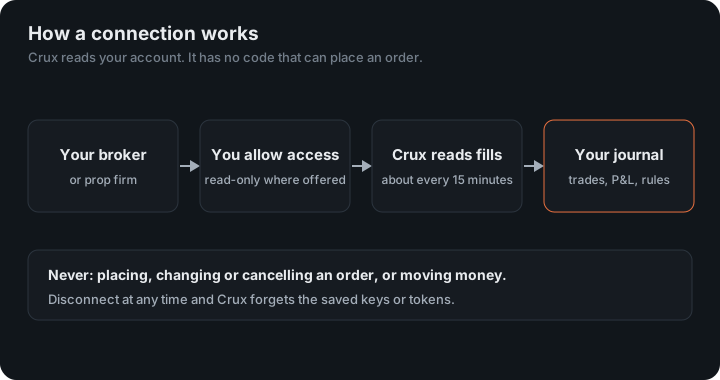
It is also the safest kind of connection Crux has. You sign in on cTrader’s own site and grant access; Crux never sees your password. The permission it asks for is cTrader’s Accounts scope, which is view-only at cTrader’s end. Even a program that tried to trade through it could not.
How far back does it read?
The first sync brings in the last 90 days, a week at a time, so it can take a minute on a busy account. After that, each sync reads only what’s new, about every 15 minutes. For history older than 90 days, export a statement from cTrader and import the file; trades that arrive both ways are counted once.
How are trades built?
cTrader reports deals: each order that filled. A deal that closes a position already carries cTrader’s own gross profit, swap and commission, so Crux takes each closing deal as a trade with no pairing of its own, and reads the opening deal only for the entry time and direction. Close a position in three parts and you see three trades, each with cTrader’s figures. Sizes are shown in lots, using each symbol’s own lot size from cTrader, so averages compare across accounts.
Several accounts, one login
Approving access shows every account under your cTrader ID. Tick the ones Crux may see; each arrives as its own account in Crux, so you can filter by it or track it as a prop firm evaluation. Accounts on a different cTrader ID need their own connection.
An example
You buy 1 lot of EUR/USD at 1.0800 and close it at 1.0850, paying $7 commission and $2 of swap. cTrader’s closing deal carries $500 gross, and Crux records one trade: 1 lot, net $491.
Figures in the example are illustrative, to show the arithmetic. Your own come from your account.
To track a cTrader prop firm account’s rules, set it up as a prop firm evaluation with the Custom preset and enter your firm’s numbers.
Lot sizes and your balance
Lot sizes come from your broker’s own symbol details in cTrader, so a gold lot or an index lot is sized the way your broker defines it, not assumed. cTrader also reports each account’s balance, deposits included, so it can drive a scaling plan without you recording anything.
Crux reads cTrader through the cTrader Open API, and the sign-in follows the OAuth 2.0 standard, which is why Crux receives a token you can revoke rather than your password.
Keep reading
- Connecting a broker — Which brokers and exchanges connect, and where each one works.
- Connect OANDA — Paste a read-only API token from your OANDA account.
- Connect tastytrade — Sign in on tastytrade and grant read-only access. Stocks, options, futures and crypto.